Welcome To Hacker's Act.

Very Welcome . Not everything that can be counted counts, and not everything that counts can be counted. -Albert Einstein

What are Hacker's ?

Are hackers a threat? The degree of threat presented by any conduct, whether legal or illegal, depends on the actions and intent of the individual and the harm they cause. -Kevin Mitnick

YoungSters

Younger hackers are hard to classify. They're probably just as diverse as the old hackers are. We're all over the map. -Larry Wall

Hacker or Man ?

Man is the lowest-cost, 150-pound, nonlinear, all-purpose computer system which can be mass-produced by unskilled labor. -NASA in 1965

Thanks For Visiting-Come again.

All Hackers Are Born As Script Kiddies.. -ImI

Showing posts with label How To. Show all posts

Sunday, March 24, 2013

Show off your Online Creativity

CREATE YOUR E-PORTFOLIO

If you are working in a creative field and want to make money or pick up some projects based on your past work , then a niche online community can actually be a very important tool to hep you promote your art.
One such online network BEHANCE.NET . Right form the initiation process to putting your projects up for the world to see, the website reminds you of the exclusive nature of your choosen art.

GETTING STARTED 


Go to www.behance.net .

Click the Log in link to set up your acc.

You can use your facebook , twitter or Linkdin acc. to login .

Click the 'Join Now' button under the 'Creative Proffessional'.

Do the formalities well.

CREATING A PROJECT

For this example , we will create a digital photography project.There are certain limitations to the image properties that you will have to consider before uploading them.To start with , your images must be atleast 202 pixels by 158 pixels,must not exceed 1 MB,and should be in the RGB color channel.Crop the uploaded cover image and give the project a name . Click 'Save and continue' to proceed and add more images to your project.
You can pick from a variety of templates depending on the kind of project you wish to create . You can preview not only a sample of the  template before picking it , but each template also features an example for you to preview.
We will be using ' Multiple Images' template .Click ' Select' and proceed to upload your pictures.
Go through the instructions on the next page and click the 'Start Now' button to continue with your Project.
You can Change the settings also.

GETTING PROFESSIONAL ASSISTANCE

If you want to get more out of the Behance network , you can start off with the tips from the professionals.For specific tips,go to the tools menu and pick the 'Tip exchange' option.You can look for tips specific to a creative field  and narrow down your search by typing in keywords.


Friday, October 26, 2012

Hack Facebook,Twitter etc ..

Using BackTrack 5 R3

Just Follow the Steps Below:-Open your backtrack 5’s terminal and type cd /pentest/exploits/set 
Backtrack5 1
Now Open social Engineering Tool kit (SET) ./set 
backtrack5 2
Just hit ENTER and SET will Open , Now just select 1st option (1 Social-Engineering Attacks) and hit enter after that 2nd number (just type 2 as shown in snapshot) 
backtrack5 3
Now Just select 4th Option “Tabnabbing Attack Method” and Hit ENTER 
backtrack5 4
Then select 2nd option “Site Cloner” and Hit ENTER 
backtrack5 5
Now here you need to add the URL of Facebook (if you want to hack gmail then just add the gmail’s URL) 
backtrtack5 6
Now just hit the enter. 
backtrack5 6
Open new terminal and just type ifconfig and hit ENTER 
backtrack5 9
Now just copy this IP address and open it in Browser. 
backtrack5 7
Now here I am just typing test email and password to see whether it works or not. 
backtrack5 8
Now just hit enter and switch back to our terminal and we found the Email and password ! 
backtrack5 10
This tutorial is just educational purpose only.

Tuesday, October 9, 2012

Change Facebook Login Background

 If you are also get bored with the Old facebook login page like me and want to get rid off it then keep reading. By using a simple extension you can put any image as background of facebook login page

This trick works only on Google chrome. Sorry to other browser users but I promise to bring this trick for Firefox users sooner.
Just follow the simple steps to configure your page:
  • Download the FB refresh extension from Chrome web store. click here.
  • select Add to Chrome. It'll automatically get attach with your chrome.
  • Now reopen your browser and go to www.facebook.com. You'll see the default image as background.

Don't you like this default image..?? Yeah you can replace it with an Image of your choice. Keep reading folks...
  • go to an image hosting site. I would suggest you to use Picasa or Flickr
  • There upload your image and copy its URL
  • In you chrome browser click on settings > Tools > Extensions then onFB refresh select option you'll see something like this.

  • Now enter your URL in the box which you copied on step 5 and click save.
Finally you are DONE. Just reopen the browser to see the changes. Enjoy your new Facebook login page.
You can buy me a drink if you like this post. :P

Friday, July 27, 2012

Password Hacking With Rainbow table


Rainbow tables are lookup tables that contain almost every possible combination of passwords in a given character set. It is simply a completed brute force attack that you can reuse as many times as you wish without having to regenerate all those possible password combinations. This can reduce password cracking time by up to 99%! Of course, to generate a rainbow table it can take longer that it would take to crack one password, but afterwards you will be able to crack others in a few minutes compared to hours. Now that you have a basic idea of what rainbow tables are, let’s look at exactly how they work.
If you recall, I said that rainbow tables store most of the possible hashes in a given character set. This is true, but not in the way you might think. Depending on the character set and length of the password, a rainbow table can get extremely large. Below is an example of tables from the RainbowCrack Project:


If the rainbow stored every hash for every plaintext word in a given character set, it would use more memory then you have or can imagine. Instead, rainbow tables use a time-memory trade off technique, known as chains.
To understand these chains, you must first understand the “reduction function”. As you’ve learned, hash functions map plaintext words to hashes, well, the reductionfunction maps hashes to plaintexts. You might be thinking, didn’t you say that you couldn’t reverse a hash function and get the plaintext from it? True, the reductionfunction doesn’t inverse the hash function acquiring the original text. No, instead it gets another plaintext from the hash. For example, if we have a set of plaintexts that are made up of 7 numbers [0-9], using the md5() function a possible hash could be MD5(1234567) -> fcea920f7412b5da7be0cf42b8c93759. In this case the reduction function could be as simple as taking the first seven numbers from the hash to generate a new plaintext. So once the reduction function was applied to the hash, it would result in the new plaintext, “9274125”. And that’s what the reduction functiondoes, generates a new plaintext from a given hash.
These chains that make up rainbow tables are made up many combinations of the one way hash function combined with the reduction function, making a chain. For example, if we were to continue the chain from the first example, it would look like this:
Md5(1234567) -> fcea920f7412b5da7be0cf42b8c93759 -> 
Reduction(fcea920f7412b5da7be0cf42b8c93759) -> 9274124 ->
Md5(9274124) -> ed7db1cf7fc4fbd0169f00c37a0165ab -> 
Reduction(ed7db1cf7fc4fbd0169f00c37a0165ab) -> 7174016 ->
The above chain would keep repeating until you or the rainbow table maker decides to stop it, usually after millions of hashes are created. Now here’s how rainbow tables save memory. Instead of storing every one of these hashes, the rainbow table only stores the first plaintext and the last hash in that chain. Then millions of more chains are created, each representing millions of password hashes. If a table was made up of the above chain, then it would be made up of its first plain and final hash looking something like this: 1234567 -> ed7db1cf7fc4fbd0169f00c37a0165ab.
Once enough tables have been generated (millions), you will want to actually use the final rainbow table to crack a password hash by checking to see if it is inside any of the generated chains. Here is the algorithm:
  • Check to see if the hash matches any of the final hashes. If so, break out of the loop
    because you have found the chain that contains its plaintext.
  • If the hash doesn’t match any of the final hashes in the tables, use the reductionfunction on
    it to reduce it into another plaintext, and then hash the new plaintext.
  • Go back to step 1.
Now that you know which chain contains the plaintext, you can start with the original plaintext of that chain and start hashing and reducing it until you come to the password hash you are trying to crack and its secret plain text. There you have it! The quickest and simplest explanation of rainbow tables that you will ever find!
When should I use a rainbow table?
If there are rainbow tables available for the type of password hash(es) you have, then use it! Chances are it’ll work. If you have to download the tables, then while that’s going on, trying a dictionary attack won’t hurt.
If the passwords are salted, then you probably will not want to use rainbow tables because you will need to create a new rainbow table for every password. Why? Well, if you recall, when you salt a password, you add a random or unique string to it and then run it through the hashing function. So if the password was “password” and the script attached the user’s username to it, the final password would be MD5(“username”+”password”). Since everyone has a different username, the word “password” will never look the same once hashed.

Wednesday, April 11, 2012

12 Awesome Tweaks For Your Android Device


Change Your Android’s Look And Feel

1. Create Your Own Ringtones

Back when Nokia was still in everyone’s pockets, custom ringtones were all the rage. It was often the only thing you could personalize in a cellphone those days. Fast forward a decade or so to Android and you have Ringdroid, your go-to app for creating custom ringtones. It not only does it let you splice and dice tracks from your music library, you can even record your own tracks. From there, you can set it as your main ringtone, an alarm or an SMS notification.

2. Show Off Flashy Live Wallpaper

One nice piece of eye candy that Google introduced a while back was live wallpapers. These replace the usual static wallpaper on most phones with an ever-changing backdrop. It can be as simple as colors changing softly to something complex like dynamic maps of your current location or backgrounds that change with the weather and time of day. They might be a bit battery draining for some phones though but if you want to try them out, you can start your hunt for live wallpapers here.

3. Personalize Your Home Screen 

The basic Android home screen is great but if you want to really bring it up a notch, there are several alternative launchers that give both a fresh new look to your phone and some nice added functionality. Some of these added features include folders for sorting apps, onscreen notifications and quick menu shortcuts. LauncherPro is the most recommended one and it gives you a scrollable app dock, custom icons, pop ups and more. Other highly-rated home screen launchers to try are ADW.LauncherSlideScreen and GO Launcher EX.

Tweak It With Apps And Widgets

4. Make Your Screens Useful With Widgets

We already talked about a few widgets that are must-haves a while back. It’s one of the special features of Android, having mini apps running on your home screen (or screens) that give you instant access to your calendar, music player, Twitter feed and more. You can even create your own through a powerful app called Widgetsoid. Widgets are always a staple in my home screens and all I can say is that they really make my phone that much easier to use.

5. Manage Your Android Files

People often forget that phones these days are PCs as well. If you want to have full control over the files in your phone storage and SD card, you need to get a file manager to help you do the job right. I personally swear by Astro which acts much like Explorer for Windows (or Finder for Mac). It lets you search for files, install and backup apps, email files as attachments,create and extract zip files, and do much more.
If moving files between devices is what you need, you can use AndFTP for FTP downloads and uploads. For local transfers, there is On Air which turns your Android device into a disk that connects over WiFi for no-plug, over-the-air transfers.

6. Monitor Tasks And Data Usage

In mobile, battery is gold and running out of juice is never an option. In order to quell the uprising of rebellious, battery-hungry apps, you need to use a task manager. Watchdog Task Manager is one such beast. It will notify you if an app goes astray and uses up too many CPU cycles. You can even give it the thumbs down, Roman emperor-style, and kill the wayward app if it displeases you.
Another canine-named app that’s quite useful is 3G Watchdog. It helps you rein in your 3G connections so that you don’t go over your data plan and take a hit on your next billing.

7. Use A New Keyboard

If the stock keyboard of your Android phone isn’t to your liking, you can change that as well.Swype, an app familiar to Samsung owners, is one of the more innovative keyboard options. It lets you swipe your finger to complete words instead of pecking on the tiny onscreen characters. It does offer a different layout but onc you get used to it, you’ll be writing messages and emails faster than ever. It’s not for everyone though but there are other keyboards you can try such as SwiftKeySlideIT and Better Keyboard.

Secure Your Android

8. Seek And Retrieve A Lost Phone

Losing a phone is stressful. It’s not just because you misplaced a device that cost you a significant chunk of change; you also lose all the personal data stored in it, a scary thought if you have bank account numbers, your home address or your kids’ phone numbers in there. Fortunately, finding your phone can be done easily with an Android App. Prey is a free app that does just that and it not only lets you track your phone, you can also let it belt out an alarm or lock your lost device for added security.
If you need more features, WaveSecure is the way to go. On top of the features above, it lets you backup data on the web, restore data, track SIM card changes and remotely wipe your lost phone’s memory.

9. Protect Your Passwords

With all the security holes being found in Android and its apps, it’s probably high time you looked into the security settings on your phone. If you’re installing an experimental app, make sure to read the permissions it gets access to before installing it.

You might also want to get a password manager both to protect your sensitive logins as well as to make it easier for you to get into your favorite sites. Password managers like 1Password andLastpass not only lockdown your passwords, they also let you grab the passwords you save on your computer if you use the desktop versions.

Go Hardcore

10. Reveal Hidden Android Settings

There are a lot of behind the scenes magic going on in your Android device which the powers-that-be have made hidden for one reason or another. If you want to play around with those, grab Spare Parts from the Market and tweak your window animation speed, WiFi sleep policy and screen font sizes with ease. A caveat: some tweaks might not work so proceed at your own risk!

11. Gain Superuser Access By Rooting

Gaining root or superuser access to your phone opens up some very cool features to regular Joe users like us. You can backup your entire phone, take screenshots, use AdBlock and set the speed of your phone’s processor among other neat tricks. In addition, it’s particularly easy to root Android phones these days (especially the earlier models) and there are many apps available that make this process as painless as possible. Note though that rooting voids your device’s warranty, so fair warning. Read our newbie guide for rooting if you need more info on how to do this deed.

12. Install A Custom ROM

The pinnacle of Android hacking is the use of a custom ROM. Essentially, you will be replacing the OS currently in your phone with another version of Android. CyanogenMod is the most-oft used ROM and it has a variety of great features such as OpenVPN, incognito browsing (similar to that of Google Chrome) and theme support, among others.
Other ROMs available let you copy the interface of other phones (HTC Sense is one often ported), upgrade to a later Android version like Gingerbread or Honeycomb or optimize your phone for speed, battery life and stability. While there is the danger of permanently bricking your phone if a ROM flash goes bad, those that follow the instructions to the tee won’t have any issues. Well, most of the time that is.
If you’re feeling a bit naughty, you can even install Android on an old iPhone. But that’s just between you and me…

Tuesday, April 10, 2012

How Antivirus Software Works

Due to ever increasing threat from virus and other malicious programs, almost every computer today comes with a pre-installed antivirus software on it. In fact, an antivirus has become one of the most essential software package for every computer. Even though every one of us have an antivirus software installed on our computers, only a few really bother to understand how it actually works! Well if you are one among those few who would really bother to understand how an antivirus works, then this article is for you.


How Antivirus Works

An antivirus software typically uses a variety of strategies in detecting and removing viruses, worms and other malware programs. The following are the two most widely employed identification methods:


1. Signature-based dectection (Dictionary approach)

This is the most commonly employed method which involves searching for known patterns of virus within a given file. Every antivirus software will have a dictionary of sample malware codes called signatures in it’s database. Whenever a file is examined, the antivirus refers to the dictionary of sample codes present within it’s database and compares the same with the current file. If the piece of code within the file matches with the one in it’s dictionary then it is flagged and proper action is taken immediately so as to stop the virus from further replicating. The antivirus may choose to repair the file, quarantine or delete it permanently based on it’s potential risk.

As new viruses and malwares are created and released every day, this method of detection cannot defend against new malwares unless their samples are collected and signatures are released by the antivirus software company. Some companies may also encourage the users to upload new viruses or variants, so that the virus can be analyzed and the signature can be added to the dictionary.

Signature based detection can be very effective, but requires frequent updates of the virus signature dictionary. Hence the users must update their antivirus software on a regular basis so as to defend against new threats that are released daily.


2. Heuristic-based detection (Suspicious behaviour approach)

Heuristic-based detection involves identifying suspicious behaviour from any given program which might indicate a potential risk. This approach is used by some of the sophisticated antivirus softwares to identify new malware and variants of known malware. Unlike the signature based approach, here the antivirus doesn’t attempt to identify known viruses, but instead monitors the behavior of all programs.

For example, malicious behaviours like a program trying to write data to an executable program is flagged and the user is alerted about this action. This method of detection gives an additional level of security from unidentified threats.

File emulation: This is another type of heuristic-based approach where a given program is executed in a virtual environment and the actions performed by it are logged. Based on the actions logged, the antivirus software can determine if the program is malicious or not and carry out necessary actions in order to clean the infection.

Most commercial antivirus softwares use a combination of both signature-based and heuristic-based approaches to combat malware.


Issues of concern

Zero-day threats: A zero-day (zero-hour ) threat or attack is where a malware tries to exploit computer application vulnerabilities that are yet unidentified by the antivirus software companies. These attacks are used to cause damage to the computer even before they are identified. Since patches are not yet released for these kind of new threats, they can easily manage to bypass the antivirus software and carry out malicious actions. However most of the threats are identified after a day or two of it’s release, but damage caused by them before identification is quite inevitable.

Daily Updates: Since new viruses and threats are released everyday, it is most essential to update the antivirus software so as to keep the virus definitions up-to-date. Most softwares will have an auto-update feature so that the virus definitions are updated whenever the computer is connected to the Internet.

Effectiveness: Even though an antivirus software can catch almost every malware, it is still not 100% foolproof against all kinds of threats. As explained earlier, a zero-day threat can easily bypass the protective shield of the antivirus software. Also virus authors have tried to stay a step ahead by writing “oligomorphic“, “polymorphic” and, more recently, “metamorphic” virus codes, which will encrypt parts of themselves or otherwise modify themselves as a method of disguise, so as to not match virus signatures in the dictionary.

Thus user education is as important as antivirus software; users must be trained to practice safe surfing habits such as downloading files only from trusted websites and not blindly executing a program that is unknown or obtained from an untrusted source. I hope this article will help you understand the working of an antivirus software.

Sunday, March 25, 2012

Prepare for CEH Entrance Exam


Today, After a long period of time I am back with CEH E-book just for your learning .


Click below link to download it.
(DOWNLOAD ME)

Monday, December 26, 2011

Introduction


Wubi logo

What is Wubi?


Wubi is an officially supported installer for Windows users that allows Ubuntu to be installed and uninstalled in a safe, easy way as with any other Windows application.

How to use this guide


Please note that this guide is only for issues directly related to the Wubi installer; for general Ubuntu questions please use appropriate resources such as the official Ubuntu documentation, the Ubuntu Forums, or the Ubuntu Guide.
For general information on Wubi see the Ubuntu Windows Installer Download page. You might also be interested in the Ubuntu Forums Installations & Upgrades section.

Warning


Wubi uses a virtual disk that is sensitive to forced shutdowns. If Ubuntu appears to be frozen please refer to: How to reboot cleanly even when the keyboard/mouse are frozen

Installation


How do I download Wubi?


Download Wubi from the Ubuntu Windows Installer Download page; this will download the latest version. You can download other versions from the Ubuntu pages on releases.ubuntu.com, e.g. 10.10, look for wubi.exe at the bottom of the page. Wubi is also included on Ubuntu Desktop and Kubuntu CDs.

How do I install Ubuntu?


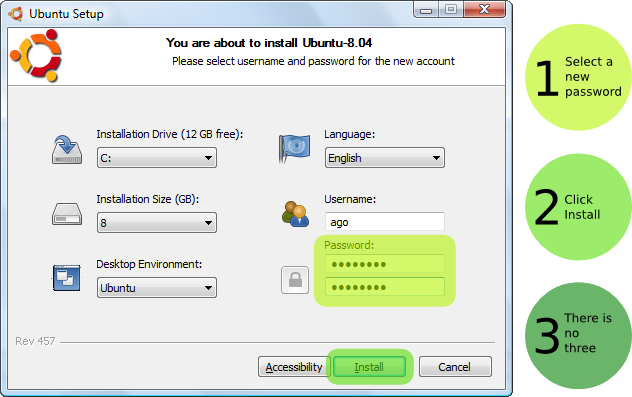
Run Wubi, insert a password for the new account, adjust other settings such as the disk space, and click "install".
The installation process from this point on is fully automatic.
The installation files (approximately 700MB) will be downloaded and checked, after which you will be asked to reboot.
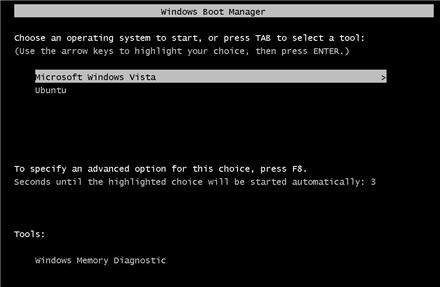
Do so and select Ubuntu at the boot screen. The installation will continue for another 10 to 15 minutes and the machine will reboot again.
That's it. Now you can select Ubuntu at the boot screen and start using it.
Screenshot of the installation screen
The standard installation has default settings that should work on most hardware.

How do I select whether to run Windows or Ubuntu?


You can choose to run Windows or Ubuntu at the system boot screen.
Screenshot of the boot screen

How do I install Wubi on a machine with no Internet connection?


Wubi also works with physical Ubuntu Desktop Live CDs. Wubi.exe is available in the root folder of the CD.
If you do not have a CD, try to find a computer with Internet access, and download both Wubi.exe and the required Desktop ISO from the same location (the release has to match):
Copy both files into the same folder on the machine with no Internet access and run the Wubi executable.

Where do I find older versions of Wubi?


Older versions of Wubi can be found on the SourceForge page.

How can I use a manually downloaded ISO?


You need to download the DESKTOP CD ISO of the appropriate version. Place the ISO in the same folder where you have wubi.exe and then run Wubi. For example, Wubi 11.10 requires the 11.10 DESKTOP ISO, available here.
Note that you need a DESKTOP CD ISO. A DVD ISO may not work. Alternate ISO files are not supported.

Why is the AMD64 version of Ubuntu being downloaded and installed?


The machine you are trying to install Ubuntu on may be 64 bit. The AMD64 installation is appropriate for all 64 bit architectures, no matter if they are AMD or Intel.

Can I force Wubi to download and install a 32 bit version of Ubuntu?


Yes: either pre-download the appropriate 32 bit ISO manually and place it in the same folder as Wubi.exe or start Wubi with the "--32bit" argument.
To modify arguments, right-click Wubi.exe and select "Create Shortcut". Then right-click the shortcut, select Properties, and modify the Target line, for example: "C:\Documents and Settings\<user>\Desktop\wubi.exe" --32bit

Can I force Wubi to install if I have less than 256MB of memory?


Yes; start Wubi with the argument "--skipmemorycheck". The installer may not work in such conditions.

Can I force Wubi to install even if I have less than 5GB of free disk space?


No. From release 11.10, 5GB is required as a minimum including enough space to store the ISO. On older releases, start Wubi with the argument "--skipspacecheck". Even on older releases, you'll still require 3GB of space plus room for the ISO. Pushing this limit too hard may cause errors.

Can I force Wubi to skip the md5 checks?


Yes; start Wubi with the argument "--skipmd5check".

Which Operating Systems are supported?


Windows 7, Vista, XP, and 2000 are known to work with Wubi. Windows 98 should also work, but has not been thoroughly tested. Windows ME is not supported. Linux is supported through Lubi.

What happens if the installation is interrupted?


If the installation is interrupted for any reason, you will have to run Wubi.exe again from within the Windows installation (which in turn may force you to uninstall first).

Upgrading


Upgrading from 7.04 to 7.10 is NOT supported, due to the fundamental differences between 7.04 and 7.10. The best method is to uninstall and install Wubi-8.10 (you can save the old installation files and access them from 8.10) or move your 7.04 installation to a dedicated partition via LVPM, then upgrade using the standard upgrade-manager tool.
Upgrading from 7.10 to 8.04 might work, but has not been fully tested.
Upgrading from 8.04 to 8.10 is supported.
Upgrading from 8.10 to 9.04 is supported, but not to 9.10.
Upgrading from 9.04 to 9.10 is supported.
Upgrading from releases 10.04 and later is supported. Please review the applicable release notes before hand. Ensure you have sufficient free space, and consider backing up the \ubuntu\disks directory (from Windows) in case there are any errors, or you prefer to revert to the old release.

Uninstallation


How do I uninstall Wubi?


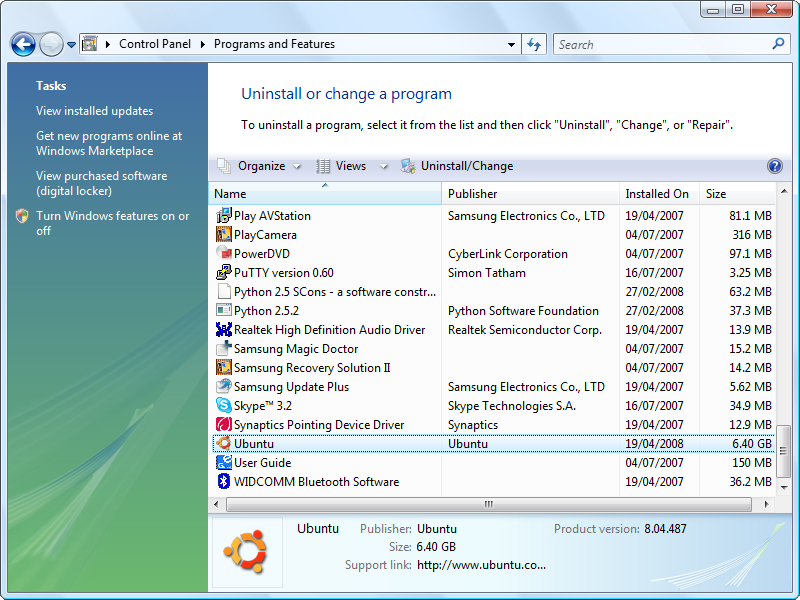
Run the uninstaller in "Control Panel > Add or Remove Programs" for Windows XP or lower or "Control Panel > Programs and Features" for Windows Vista or Windows 7. Alternatively, you can run: C:\ubuntu\Uninstall-Ubuntu.exe.
wubi-uninstall.png
If the uninstaller fails, try downloading and running Uninstall-Ubuntu.exe.

How do I manually uninstall Wubi?


Remove C:\ubuntu and C:\wubildr*
In Windows XP you need to edit C:\boot.ini and delete the Ubuntu/Wubi line. For Vista, you can use EasyBCD to edit the boot menu. Alternatively you can modify the boot menu via Control Panel > System > Advanced > Startup and Recovery and pressing "Edit". For Windows 98 you have to edit C:\config.sys and remove the Wubi block.
To remove Wubi from the add/remove list, delete the registry key: HKLM\Software\Microsoft\Windows\CurrentVersion\Uninstall\Wubi
An easy method of removing this registry key is to paste the following text into a plain editor such as Notepad, close and save the file as something like removeWubiKey.reg (you may wish to go to Folder Options > View and disable the "Hide file extensions for known file types" option to check that the .reg extension has been applied correctly). Then you can perform the rest automatically by opening the file in the normal Windows manner, or choosing the "Merge" option from the right click context menu. Note: The formatting is rather strict, so copy the text exactly for best results. You may need to be logged in as the administrator to delete the key, depending on the version of Windows you are using. User Account Control in Vista may also ask for permission, in the typical fashion.
REGEDIT4

[-HKLM\SOFTWARE\Microsoft\Windows\CurrentVersion\Uninstall\Wubi]

After deleting the registry key, Ubuntu may still appear in the program list. If this is the case, you may be asked if you would like to remove the item from the list.

How do I reinstall Wubi?


Run Wubi.exe again. Wubi will detect that there is an existing installation and you will be offered an option to uninstall. You may want to backup the installation files (the ISO) in order to avoid having to download them again. Note that when you reinstall, the system virtual drive (root.disk) is reset.

How can I make a backup of my Wubi install?


The easiest method is to to simply copy the root.disk to an external medium. In the event that something goes wrong, copy the root.disk back to the Ubuntu folder on the Windows drive. Note that this is not the most efficient method (since it copies the whole root.disk rather than specific data/settings) but it is effective.

Unsupported set-ups


Software raid arrays


Although installing Wubi to RAID is not officially supported there have been reports of users who have done so successfully. This has not been thoroughly tested and users who experience problems with installing to RAID should address their concerns on the Ubuntu Forums. Additionally, users who have computers with software RAID metadata, where the RAID has not enabled, may need to delete the RAID metadata before installing Wubi.

Encrypted disks


Encrypted disks are not supported.

Windows ME


Windows ME is not supported.

Proxy server


Wubi does not support http proxies, which will result in the download failing. You will have to download the ISO manually as explained above and place it in the same directory as Wubi.exe.

DVD and Alternate ISO


DVD and Alternate ISO/CDs are not supported. The ISO must be an 8.10/9.04/9.10/10.04/10.10/11.04/11.10 CD Desktop ISO.

Troubleshooting


Cannot access the CD


This problem sometimes occurs when a drive/disk is already in use or not finalized. If this is not the case, please check that your hardware is supported by both Ubuntu and Wubi.
If problems still persist after checking the above, please follow instructions on how to download Wubi and make it use an ISO file instead of physical media.

Windows Missing hal.dll


You can get this error if you are using Windows XP and you've manually edited the file C:\boot.ini or you've deleted the C:\wubildr.mbr file. If you've deleted the C:\wubildr file then you should be able to boot Windows normally, in which case simply copy \ubuntu\winboot\wubildr.mbr back to C:\wubildr.mbr (also copy the wubildr if it is missing).
If you've manually edited the file and it is corrupt or missing then you will not be able to boot Windows. See the following link on how to fix: http://support.microsoft.com/kb/330184

Cannot boot into Ubuntu


Never try to correct Wubi boot problems by reinstalling Grub2. This will prevent Windows from booting and will not fix the Wubi install.
Ubuntu cannot be booted if Windows has not been shut down cleanly, you have to clear the Windows filesystem from Windows (there is no chkdsk equivalent for Linux yet). If Wubi fails to start, boot into Windows, run chkdsk /r from Windows on the same drive where you installed Ubuntu, shutdown cleanly and then try to boot into Ubuntu again.
Note that sometimes files are moved by Windows into a hidden folder called C:\found.000. You need to have C:\ubuntu\disks\root.disk. If you do not see those, look for found.000. You need to change the Windows Explorer settings to be able to see hidden folders first, then move the files from found.000 to their original location. Sometimes the entire \ubuntu\disks directory may be recovered to \found.000 in a folder named dir0000.chk.
Make sure you did not install on a RAID array or in an encrypted disk. Also make sure you did not install using an Alternate or DVD ISO.

Other boot or video problems


Some hardware is not fully compatible and Wubi will freeze upon booting (ACPI) and/or you may experience video problems. Those are not Wubi specific issues. There are generally special parameters that are required to enable workarounds for such hardware. Refer to this support thread for more information.

Installation error while formatting the swap file


If the installation fails while formatting the swap virtual disk it means that your drive is excessively fragmented. Uninstall, run jkdefrag on the target drive and then run Wubi again.

Cannot uninstall Ubuntu


If you used Wubi rev. 505, the uninstaller may fail if you installed on a drive other than the C drive. In such cases use Uninstall-Ubuntu.exe. Wubi rev. 506+ does not have this issue.

Cannot download the ISO file


This normally happens when you are behind a proxy server; sometimes the server might be down temporarily. In either case you can download the ISO manually as explained above.

Video Problems after second reboot


If you experience problems after installation, press "Ctrl+Alt+F2" and run:
sudo dpkg-reconfigure xserver-xorg
Select the VESA driver and leave all other options at default. Then reboot. That will allow you to boot into a safe graphics mode (limited resolution) you should then be able to install the appropriate drivers or try other solutions as needed.

Corrupted NTFS filesystem


All reported cases of damaged filesystems were from users who hard rebooted (pulling the plug).
When you hard reboot, there is always a chance of damaging your filesystem, whether you use Wubi or not.
New users, unfamiliar with a new operating system, tend to hard reboot more often than necessary when they encounter problems.
If Wubi becomes damaged as a result of a hard reboot, there is a chance that Windows may also become corrupted since the principle behind Wubi is that of a virtual disk within the host operating system.
Sometimes people blame Wubi for these issues even though a quick Google search will reveal numerous cases of NTFS corruption without users having ever installed Wubi or ntfs-3g (and a full software industry lurking on that…).
If the NTFS filesystem becomes corrupted you need to run chkdsk /r from the Windows Recovery Console on the Windows CD (or other recovery CD available on the web) or in the msdos console (if you can boot into Windows).
At the moment there is no fsck for NTFS on the Linux side, otherwise it would be possible to fix these errors automatically within Linux itself, without having to rely on Windows tools.
The best advice is to simply avoid hard rebooting, whatever OS you may be using.

Wubi Support Forum


If none of the above sections or advice help with your problem, feel free to ask for support on the Ubuntu Forums in the Installations & Upgrades section; don't forget to let them know that you're using Wubi by prefixing your thread title with [wubi]. It helps a lot if you can provide relevant logs when asking for support and will also speed up the process significantly.
Note that you can install in "Verbose Mode" so that the logs will give much more detailed information. You will have to uninstall, reinstall, press "ESC" at boot after selecting "Ubuntu", and choose "Verbose Mode". There are different Wubi logs:
  • Windows side installation logs are in your user temp folder (%temp%)
  • For grub errors, immediately after reboot, press the insert key rapidly after selecting Wubi and/or press ESC at the countdown after selecting "Ubuntu" and use "c" or "e" to enter the appropriate boot options manually
  • For installation boot logs or if you end up in a Busybox console, see /casper.log. You can use the commands "cat" and "more" to read the file.
  • For installation logs see /var/log/syslog and /var/log/installer within Linux and C:\ubuntu\installation-logs.zip within Windows. If you do not have C:\ubuntu\installation-logs.zip, uninstall, reinstall, select "Verbose Mode" at boot (see above). When the installer stops press CTRL+ALT+F2 and run: "sudo sh /custom-installation/hooks/failure-command.sh". You can now reboot into Windows, the logs should be in C:\ubuntu\installation-logs.zip
  • Post installation logs are in /tmp and /var/log/syslog
Bugs are tracked in https://bugs.launchpad.net/wubi.

Misc.


Inclusion into official Ubuntu


Wubi was born as an independent project and hence the 7.04 and 7.10 versions were unofficial. Wubi 8.04 and later versions are, however, official as well as being fully supported. Wubi has been shipped within the Ubuntu Live CD since the 8.04 release.

How do I make Ubuntu the default boot option?


Ubuntu is not installed as the default boot option, you have to select it in the Windows boot menu. To change that, in Windows XP go to Control Panel > System > Advanced Startup and Recovery and edit the "Default Operating System". If you want, you can change the timeout as well. Be aware that changing the timeout to zero (0) may cause issues booting into Windows. It is preferable that the value be set at 10 or higher.

Can I back up the installation files?


Yes; just copy C:\ubuntu\disks\root.disk somewhere else (in 7.04 the relevant files are called C:\wubi\disks\*.virtual.disk). Old installation files can be mounted within Ubuntu and any relevant data can be copied over the new installation.

How do I install multiple distros?


You can install your favorite distro from within Wubi (see the advanced settings) and then once you are in Ubuntu, you can install the other desktop environments as normal packages. Each desktop environment is available as a single package (e.g. kubuntu-desktop). You will not have to reboot to change the desktop, simply log-off and choose the desktop environment in the options at login.

Improving disk performance


Poor disk performance is usually due to a fragmented drive or to a low amount of memory (frequent swapping).
You can use jkdefrag to defragment from within Windows.
  1. unzip
  2. run: jkdefrag c:\ubuntu (or c:\wubi in 7.04 and above)

What happens if I have another bootloader?


Wubi only changes the Windows bootloader. Chances are that your bootloader will chainload into the Windows bootloader. For instance, if you have Grub already, you will have to select Windows there, and then you will see Windows and Ubuntu. The chain of events goes like this:
GRUB > NTLDR/BCD > GRUB4DOS > KERNEL

How big should the the virtual disks be?


The default size is calculated automatically based on your free space. There are options to change this in the settings. The space is not actually fully used; a barebone installation takes less than 3GB including all of the preinstalled software (office suite, games, graphics applications, etc...), but if the virtual disks were 2GB to 3GB, you would soon run out of space once you start installing extra software. 8GB should be enough in most cases. Remember that on FAT filesystems the virtual disks cannot be larger than 4GB (Wubi will split larger allocations over several virtual disks). Remember also that Wubi requires a larger free space than the one required by the virtual disk themselves, that is because it has to grab an ISO (700MB) plus some headroom. So Wubi will not install if you have less than 5GB free.

How do I migrate to a real partition, and/or get rid of Windows entirely?


Existing Wubi installs (9.10 and later) can be migrated using the following guide: http://ubuntuforums.org/showthread.php?t=1519354
Existing 8.04 Wubi/Lubi installations can be upgraded to an installation on a dedicated partition via LVPM. The main site for LVPM is at http://lubi.sourceforge.net/lvpm.html and the guide and support forum is at http://ubuntuforums.org/showthread.php?t=438591.
For 8.04 only, as an alternative to LVPM, the following script can be used: Download wubi-move-to-partition
Open a terminal and run:
sudo sh wubi-move-to-partition /dev/sda9 /dev/sda10

Replace /dev/sda9 with the partition where you would like to migrate the Wubi installation to, and /dev/sda10 with the appropriate swap partition (you can omit the second argument completely, in which case no swap will be setup). The two partitions must already exist and be empty (you can use any partitioning tool such as gparted to create them in advance). Note that the script will install grub as main bootloader replacing the existing bootloader, and it may not be easy to undo the changes (if things do not work as expected you will have to boot from a Live CD and replace/edit the bootloader manually). Also note that if you have multiple hard-disks, the disk order might have to be adjusted manually.

How do I resize the virtual disks?


For releases 9.10 and later, you can use the following guide: http://ubuntuforums.org/showthread.php?t=1625371
For releases prior to 9.10, you can use LVPM, at http://lubi.sourceforge.net/lvpm.html
As an alternative, you can use the following script to move /home to a dedicated virtual disk.
Download wubi-add-virtual-disk, open a terminal and run:
sudo sh wubi-add-virtual-disk /home 15000

Where the first argument is the directory to move to a new dedicated disk, and the second argument is the size in MB.
You should now reboot. If you are happy with the result, you can now remove /home.backup. To undo the changes remove /home, copy rename /home.backup to /home and remove the /home line in /etc/fstab.
Note that contrary to previous information, this script is not suitable for moving /usr.
Experienced users may be able to do this manually, at own risk, following a process similar to that outlined in the file. (Do not rename /usr until the very last moment, as rsync is installed there.)
To move /usr try enter recovery mode after you run
sudo sh wubi-add-virtual-disk /usr 15000

and copy all folders in /usr.backup into new /usr and then fix sudo with
chown root:root /usr/bin/sudo
chmod 4755 /usr/bin/sudo

How do I increase my swap space?


The following will increase your swap to 2 GB. Replace count= with the number of kilobytes you want for your swap file.
sudo su
swapoff -a
cd /host/ubuntu/disks/
mv swap.disk swap.disk.bak
dd if=/dev/zero of=swap.disk bs=1024 count=2097152
mkswap swap.disk
swapon -a
free -m

The final free statement will verify that your new swap file has the correct space. If everything worked, issue the following command and you are done. If it didn't work, then remove swap.disk and move swap.disk.bak back to swap.disk and try again.
rm swap.disk.bak

How do I create a virtual disk in Ubuntu?


Open a terminal (Applications -> Accessories -> Teminal), and enter these commands (this will create a 10 GB extra.virtual.disk, adjust line 2 to change these):
cd /host/ubuntu/disks
dd if=/dev/zero of=extra.disk bs=1MB count=10000 seek=1
mkfs.ext3 -F extra.disk

How do I create a virtual disk in Windows?


You can use qemu-img for that. Another dirty (but working) trick is to copy any other file of the desired size to C:\wubi\disks and rename it "root.disk", "home.disk", "swap.disk" or "extra.disk". That's the Wubi equivalent of buying (and installing) a new hard disk.
If you are running Windows XP (may work in Windows 2000 and Vista as well) you can create a file by using the fsutil that is included with Windows. The command format is fsutil file createnew filename filesize where filename is the file you wish to create and filesize is the size of the file to be created in bytes.

How do I access the Windows drives?


The Windows partition where you installed Wubi is available as /host within Ubuntu (Places > Computer > File System > Host) All the other partitions will be available under Places > Removable Media

How can I access the Wubi files from Windows?


There are a few Windows applications that can mount ext2-based file systems. See for instance:
The relevant Wubi files you need to access are located under C:\ubuntu\disks\

How can I access my Wubi install and repair my install if it won't boot?


Boot the Ubuntu Desktop CD, or another LiveCD, then mount the windows partition:
sudo mkdir /win
sudo mount /dev/sda1 /win

Replace sda1 with the appropriate device (a = disk, 1 = partition number), then mount the virtual disk therein
sudo mkdir /vdisk
sudo mount -o loop /win/ubuntu/disks/root.disk /vdisk

Now the content of the virtual disk will be visible under /vdisk. 7.04 users will have to install ntfs-3g first and specify it as fstype to gain r/w access.
To check the filesystem you can use (make sure the root.disk is not mounted):
sudo fsck /win/ubuntu/disks/root.disk

How to reboot cleanly even when the keyboard/mouse are frozen


There are normally several ways to reboot cleanly using key combinations such as:
  • CTRL + ALT+ F2 (get to a terminal, you can then run top/kill/pkill to discover and kill the offending process)
  • ALT+ SYSRQ + R then CTRL + ALT+ F2 (as above, but first try to regain control of the keyboard)
  • CTRL + ALT + Backspace (kills the graphic session and goes to a console, all graphical applications are terminated too)
  • ALT+ SYSRQ + R then ALT + Backspace (as above, but first try to regain control of the keyboard)
  • CTRL + ALT + DEL (reboot)
  • ALT+ SYSRQ + R then CTRL + ALT + DEL (as above, but first try to regain control of the keyboard)
  • ALT+ SYSRQ + R + E + I + S + U + B (forces a clean reboot even when the keyboard is not responding)
The last one is the most effective, but you could try the other commands first.

Wubi Customization


Can you add Ubuntu-flavor-XYZ to Wubi?


If you want your distribution included into the official release of Wubi, it first requires approval. A live CD ISO must be available to do that (Wubi uses an ubiquity based installer).

How do I compile Wubi from source?


Wubi can be easily rebranded and modified. Get the Wubi source code and modify the files in the ./data directory as you see fit. In particular you may want to change isolist.ini and setting.nsh, you might also want to change english.nsh (to alter the localised strings) and the artwork (image names have to match the headers in isolist.ini).
To compile on a Debian based system, run:
sudo apt-get install gettext build-essential grub-pc mingw32 #Is needed to compile Wubi
make

Note that you need the following:
  • A Live CD with ubiquity + casper + lupin-support (which provides lupin-casper)
  • The ISO must have a .disk/info formatted like the one in the Ubuntu ISO and with data matching what you provided in the isolist.ini
  • If you want users to be able to download the ISO, in your web server you need to provide a metalink file for each ISO provided, the md5 of said metalink files, and the signature of the md5s. To verify the signature you need to add the signing key to data/trustedkeys.gpg. If this is too much trouble, you can disable signature checks in data/settings.nsh. The metalink file must be on a "stable" URL since that is hardcoded in isolist.ini. The metalink file can in turn point to all your mirrors. You will notice that 2 metalink files are provided in isolist.ini, one is for final release, and one for development versions.

Can I use Wubi for non-Ubuntu based distributions?


It should be fairly straightforward to modify the frontend (feel free to ask if you need any help), as shown above. Your Linux distribution must have a mechanism to do unattended installation using a preseed file. Wubi takes advantages of debian-installer/ubiquity presiding. If you use a different mechanism, you will have to modify src/wubi/installer_preseed.nsh. The make prerequisite scripts may need to be updated as well, since they are Debian specific.
Note that upstream files (Linux-side) need to be changed since normal distributions are generally not capable of targeting and booting (and rebooting) off of a loop device. This task was originally accomplished by the Lupin project, but since 7.10 a lot of functionality has been moved upstream. Hence you might want to have a look at:

Where is the source code?


What is the license?

The code is distributed under GPL version 2 and above, however, the Linux kernel itself is licensed under the GPL version 2 only.